

Make Amazon notify you only when you're saving money
-
Rufus in the Amazon app can trackthe price of anyitemand can even 'Auto Buy' for you if youre a Prime member
-
Turn on Amazon app notifications, open the product page, tap Ask Rufus, set your target price or % drop, and wait for the alert
-
Use alerts to pre-stalk big sales, restock household staples at a good price, and slow down impulse buys
Imagine telling Amazon, Notify me when this TV drops below $499, and then going back to your life. Well, thats basically what Rufus price alerts do and they can save you time and money.
Rufus is Amazons AI shopping assistant built into the app and website. It can show price history, set price alerts, and even auto-buy something for you once it hits your target price.
Below is a step-by-step guide that you can use to start setting price alerts on Amazon and only buy when the price is right.
First, make sure youre familiar with Rufus (and notifications on)
The first thing you need to do is get familiar with Rufus and where youll access the AI tool on the Amazon app and website.
Where Rufus lives:
- In the Amazon app (iOS/Android), look for a little Rufus logo with colorful chat bubbles or the Ask Rufus button. Youll find both on individual product pages as well as near the bottom of the screen.
- Also, on Amazon.com, you can find Rufus near the search bar at the top or on individual product pages. But you CANNOT set price alerts on the website, only via the Amazon app.
Turn on notifications first (or this whole thing is pointless):
- Open the Amazon app Account Settings Notifications.
- Also, make sure app notifications are allowed for Amazon in your phone settings and that shopping/price notifications are enabled in the app.
- If notifications are off, Rufus can track the price, but youll never see the alert.
To make price alerts happen, you dont need a special subscription beyond a basic Amazon account. But if you want to use the Auto Buy feature, youll need to be a Prime member.
Method #1 Manually set your price alert
This is the tap it and go manual method that many of you will probably use.
- Open the Amazon app.
- Go to the exact product page you care about and make sure youve selected the right size/color/configuration first, because alerts are tied to that specific product version.
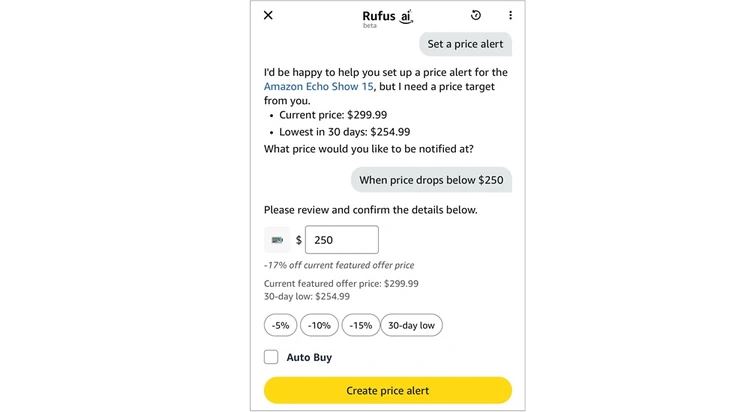
- There currently is not a Set price alert buttonon the product page. You actually need to open Rufus first and type Set price alert.
- Rufus will then show you the current price of the product as well as the 30-day lowest price.
- Youll then be asked What price would you like to be notified at? You just type the price you want to pay.
- Rufus will then pull up a price alert review and give you a couple other alert options that you can choose if you like.
- At this point, you can also select Auto Buy if youre a Prime member. When youcheck the Auto Buy box, Amazon will actually buy the item for you once it reaches your pre-selected price point.
- Last, tap Create price alert and youre done.
Once thats set, Rufus will check every 30 minutes for price changes and send you a notification when it hits your target.
Pro tip: When using Auto Buy, Amazon automatically places the order using your default payment method and default shipping address. And dont worry, youll get notified that the order has been placed and you have a 24-hour cancellation window to change your mind. Also, be aware that auto-buy requests stay active for up to six months or until you cancel them.
Method #2 Just ask Rufus to set the alert
You can also talk to Rufus directly via your phone to set up your price alert.
Heres how to make it happen:
- Open the product page in the Amazon app.
- Tap the Rufus icon / Ask Rufus button.
- Tap the microphone icon and say something like:
- Set a price alert for this if it drops below $500.
- Let me know if this falls 15%.
- Set a price alert at $16.99 and auto-buy it when it hits that price.
- Rufus will then confirm the item, your target price or percentage-off, and whether you want Auto Buy.
Behind the scenes, talking to Rufus does the same thing as manually typingSet price alert, it just feels a little more tech-savvy.
How to actually find your price alerts
As is the case withmany features on Amazon, they dont always make things easy to find.
As a matter of fact, when using their website (not the app), they make it impossible to find the price alerts that youve previously set up.
Heres exactly how to find your price alerts:
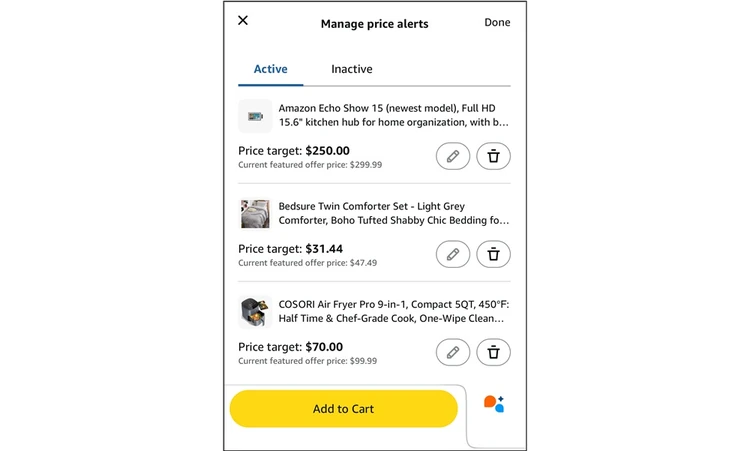
- On the Amazon app, tap the three horizontal lines (menu) at the bottom, then Account, then in the Orders section tap on Your Price Alerts, then Manage Price Alerts.
- Even easier when using the app, you can simply tap Rufus and say Manage my price alerts and youll get instant access to them.
- On the website, youre out-of-luck. As of right now, you can only access your price alerts via the Amazon app. I verified this with an Amazon rep after a lengthy phone call. Hopefully theyll fix this in the near future.
Once you find your price alerts, you can tweak them how you want or cancel them altogether. This is also the spot where you can turn Auto Buy on or off.
Smart ways to actually use Rufus alerts
Here a few of my favorite ways to use these price alerts to save money in real-life:
Pre-sale stalking:
Before big shopping days like Prime Day / Black Friday / Cyber Monday, set price alerts on your maybe or wish items. Then let Rufus do the tracking instead of you refreshing your cart 40 times.
Stock-up strategy:
For stuff my family buys over and over (things like detergent, pet food, razor refills), I like to set a reasonable price target and then let Auto Buy do the work for me whenever the price is right. It saves me a lot of time and I know Im always getting a deal.
Impulse-control hack:
If you train yourself to only buy when Rufus hits your target price, youve basically turned every I want it now purchase into Ill wait for a real discount. Think of this as a built-in cooling-off period and it often keeps your impulses purchases under wraps.
Posted: 2025-12-04 02:15:33